
General ledger reports
|
Standard Financial Statements |
Last Revised: 12/15/17 |
Standard Financial Statements, accessed under Dynamo's General Ledger Reports (GLR) menu includes the ability to generate an Income Statement and Balance Sheet. These reports can be further refined to any combination of different companies or branch locations, if they exist G/L Location Maintenance under the General Ledger Utility Functions (GLU) menu.
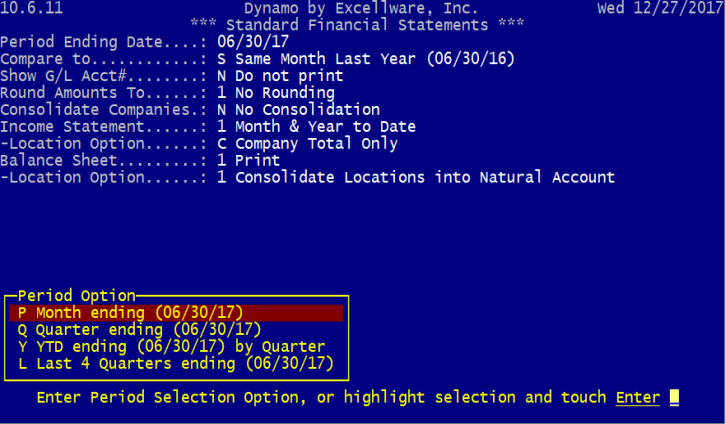
| Parameter | Description | ||||||||||||||||||
|---|---|---|---|---|---|---|---|---|---|---|---|---|---|---|---|---|---|---|---|
| Period Ending Date |
Generated financial reports will display grand totals through the date specified here. The actual period for the Income Statement—year-to-date or month-to-date, etc.—is specified under the Income Statement section below. Entering a date that also coincides with the end of a quarter will provide additional Period Selection options as seen in the image above. Once selected, the ending date and period covered for the report(s) will be displayed at the top of each report when printed. Any transactions that have not been updated will not be included in the reports.
Note that after choosing a Period Ending Date, Dynamo may automatically prefill the rest of the parameters with commonly used settings, asking if all entries are correct. If they are, type Y for Yes and press enter to begin generating the financial reports immediately. If any parameters need to be changed, simply type N for No at this prompt and press Enter. Users will then be able to change any of the parameters detailed below. |
||||||||||||||||||
| Compare to |
Several options are available to compare figures of the current report to previous periods:
|
||||||||||||||||||
| Show G/L Acct# | General ledger account names—such as Interest Expense, Salaries & Wages, Sales Tax, etc.— are displayed on the reports by default. This option allows users to choose whether or not to display the corresponding general ledger account numbers as well. These account numbers and names are maintained with G/L Account Maintenance under the G/L menu. | ||||||||||||||||||
| Round Amounts To |
Several options are available to round the displayed dollar amounts (to the nearest dollar) on the generated financial reports:
The Balance Sheet automatically adds a line named "Report Rounding Adjustment” following “Current Year Earnings (Loss)” This is needed as a series of rounding up or down can accumulate into a unit mismatch, leading to an unbalanced balance sheet. This adjustment should be very close to zero when reported. An excessive amount indicates the Balance Sheet does not balance. |
||||||||||||||||||
| Consolidate Companies* |
If Dynamo is being used to manage multiple companies—which have separate company codes—this option can be used to consolidate those companies into a single report. Choosing (N) No Consolidation will generate reports only for the company code Dynamo is currently using. Choosing (Y) Consolidated Statements will allow the user to select one or more other companies to produce a consolidated report. Choosing the (Y) option will also prevent the user from choosing additional individual locations for the Income Statement.
Note: company codes are created and maintained with Company Maintenance under the System Management Configuration (SMC) menu. |
||||||||||||||||||
| Income Statement* |
First, the user is given the option of whether or not to actually print an Income Statement. If option (3) Do not print is chosen, the user will be taken to the next parameter to specify Balance Sheet options. Selecting either (1) Month & Year to Date or (2) Year to Date as the Income Statement period will prompt for additional options as follows.
For companies that define multiple general ledger locations (e.g. for separate branches), this option can be used to specify multiple locations for the Income Statement. If one or more specific locations are chosen here, an Income Statement will be produced for the selected location(s) in addition to a Consolidated Locations Income Statement for those locations.
Note: Multiple G/L locations are created and maintained with G/L Location Maintenance under the General Ledger Utility Functions (GLU) menu.
|
||||||||||||||||||
| Balance Sheet |
First, the user is given the option of whether or not to actually print a Balance Sheet. If option (2) Do not print is chosen, the user will be prompted to verify whether all settings are correct before finally printing the financial statements. Selecting option (1) Print will prompt for additional options based on whether multiple locations were selected for the Income Statement.
|
* For the parameters, Consolidated Companies and Income Statement, multiple locations are added by moving to the end using the keyboard's arrow keys and pressing Enter to choose from a list of available entries. Use the Delete key to remove an existing entry from the list. Reports for multiple locations will print in the order they appear in this list. Users can use the Insert key to insert a new entry between two existing entries in the list. The Right Arrow key will restore the last removed location. Once satisfied with the included locations and the order in which they appear, pressing the F4 key will move the prompt to the next parameter in the list above.